Step-by-step Tutorial
Visit the official repository to download the example code and get the latest version.
What you need
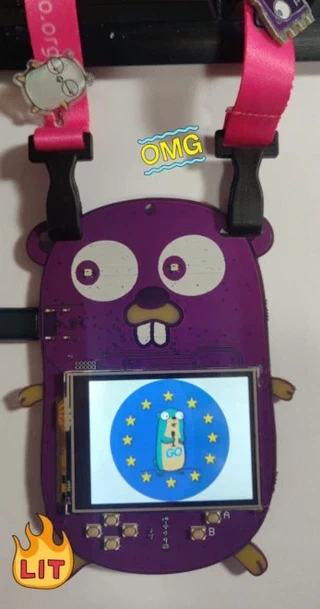
- Gopher Badge aka the cutest badge out there
- Personal computer with Go 1.20 and TinyGo 0.28 installed, and a serial port.
Installation
Go
If somehow you have not installed Go on your computer already, you can download it here:
Now you are ready to install TinyGo.
TinyGo
Follow the instructions here for your operating system:
https://tinygo.org/getting-started/
Connecting the Gopher badge to your computer
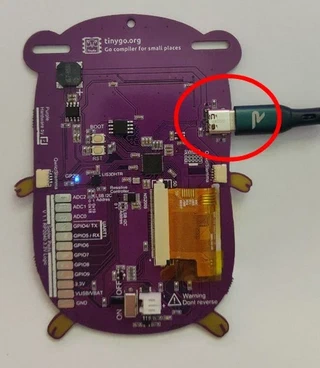
Plug the Gopher badge into your computer using a USB cable. There may be one provided in your starter kit.
Running the code
The TinyGo programs will run directly on the Gopher badge’s microcontroller. The procedure is basically:
- Edit your TinyGo program.
- Compile and flash it to your Gopher badge.
- The program executes from the Gopher badge. You can disconnect the Gopher badge from your computer (plug it into a battery, if it isn’t already), the program executes directly on the microcontroller.
Let’s get started!
Code
step0.go - Built-in LED
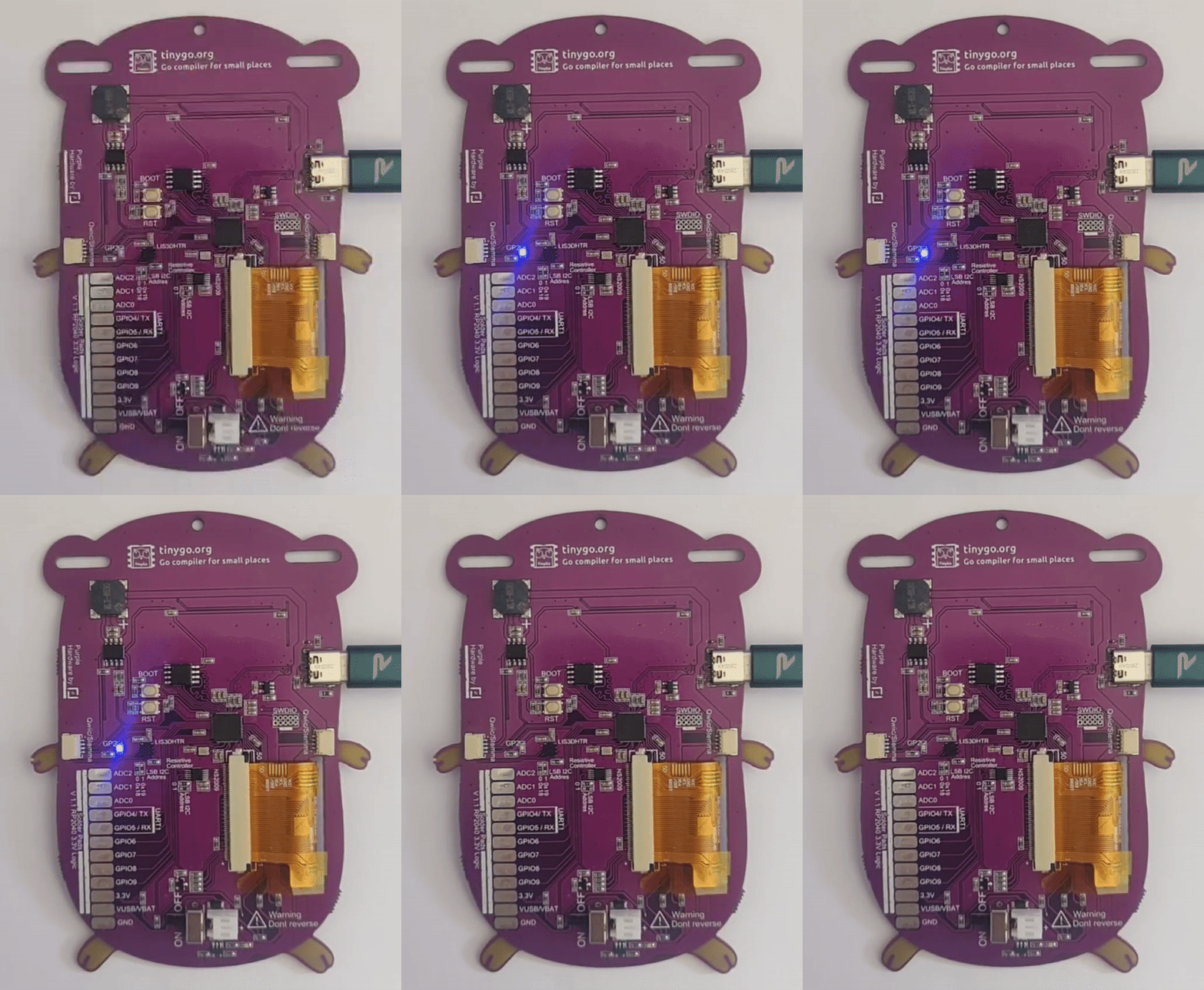
This tests that you can compile and flash your Gopher badge with TinyGo code, by blinking the built-in LED (it’s on the back).
tinygo flash -target gopher-badge ./tutorial/basics/step0
Once the Gopher badge is flashed correctly, the built-in LED labeled “D13” (on the back) should start to turn on and off once per second. Now everything is setup correctly and you are ready to continue.
step1.go - Built-in LED, A Button
Run the code.
tinygo flash -target gopher-badge ./tutorial/basics/step1
When you press the A button, the built-in LED on the back should turn on.
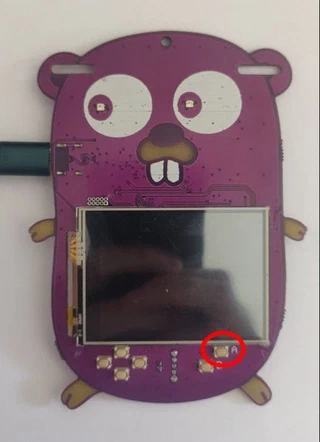
Challenge: See if you can modify ./step1/main.go so that the LED turns on if the B button is pressed instead of the A button.
step2.go - Neopixels
Run the code.
tinygo flash -target gopher-badge ./tutorial/basics/step2
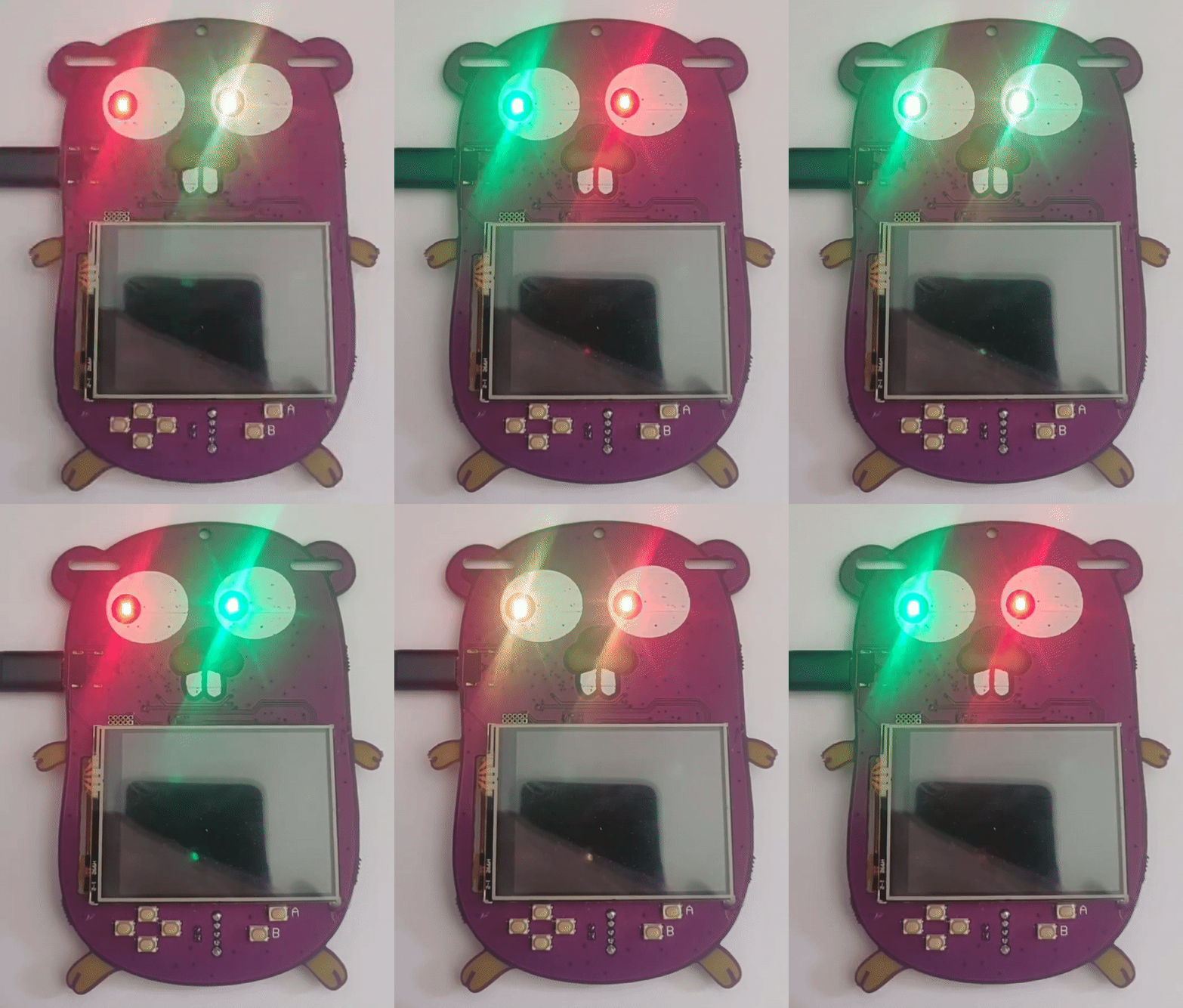
The 2 neopixels should light up green and red alternatively.
step3.go - Neopixels, Buttons
Run the code.
tinygo flash -target gopher-badge ./tutorial/basics/step3
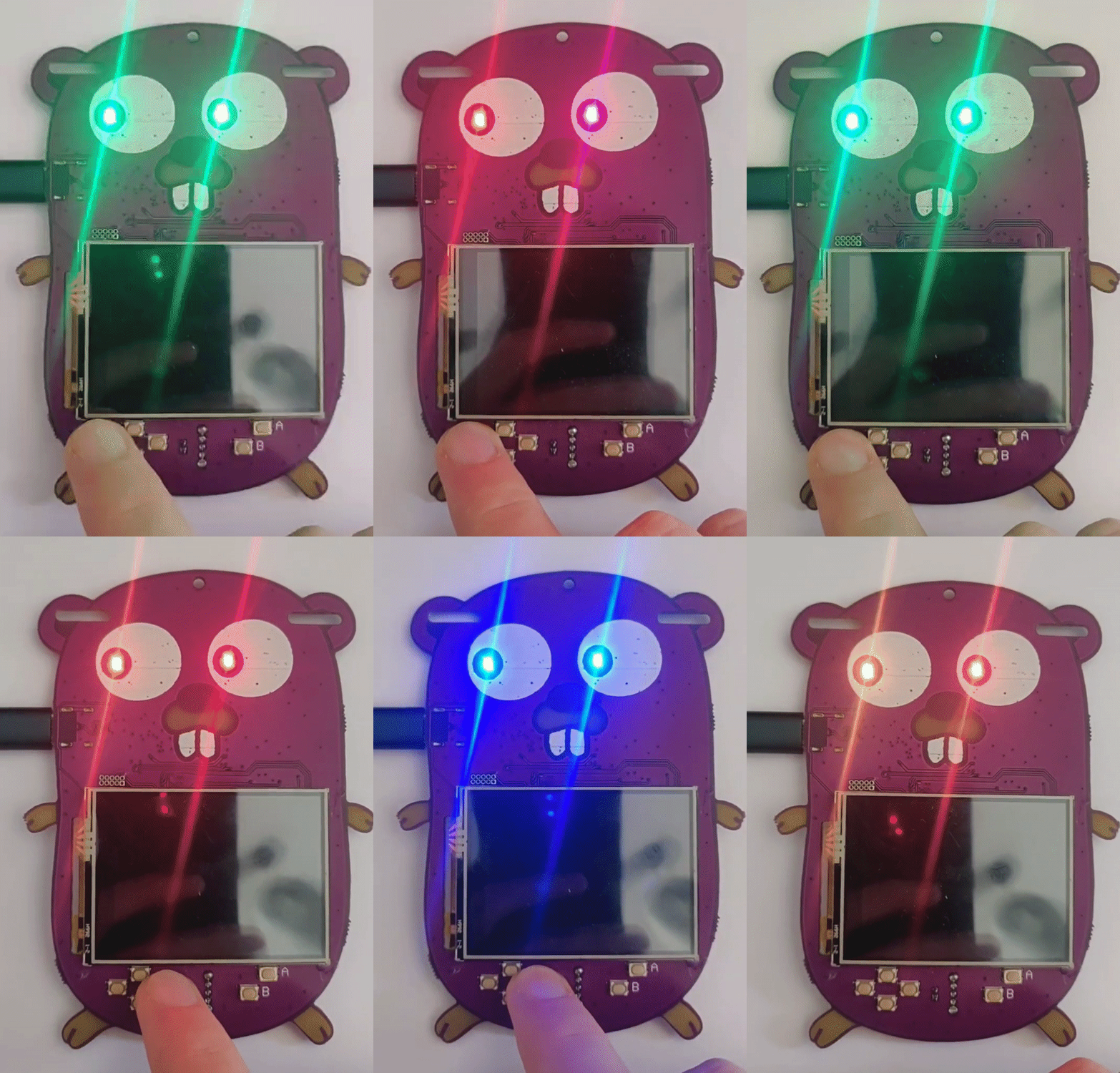
The 2 neopixels should light up in different colors depending on which button you press.
What happens if you press more than one button at a time?
try out ./step3b, what does it do?
After deploying it should look like this:
step4.go - Display
Run the code.
tinygo flash -target gopher-badge ./tutorial/basics/step4/
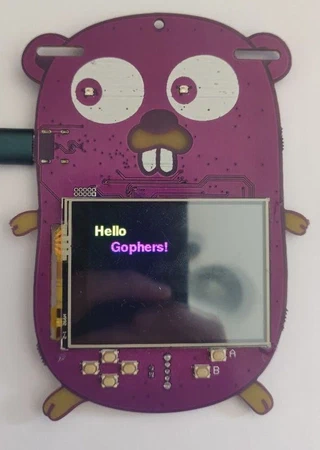
The message “Hello Gophers!” should appear on the display.
step5.go - Display, Buttons
Run the code.
tinygo flash -target gopher-badge ./tutorial/basics/step5/
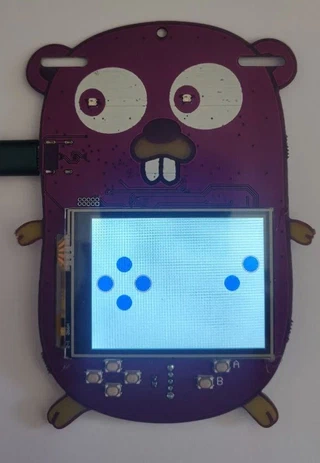
The display will show some blue circle that represent that buttons on the board. When a button is pressed a ring will be shown around its corresponding circle.
step6.go - Display, Accelerometer
Run the code.
tinygo flash -target gopher-badge ./tutorial/basics/step6
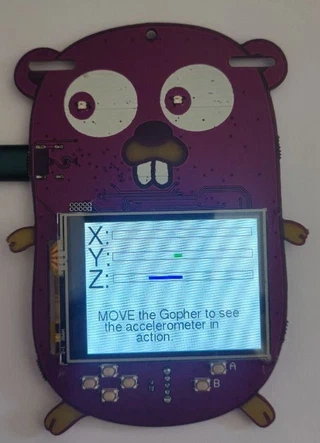
The display will show a bar for each X,Y,Z axis. Move the Gopher badge to see it in action.
step7.go - Buzzer, Buttons
Run the code.
tinygo flash -target gopher-badge ./tutorial/basics/step7
Press the buttons and create your melody.
step8.go - Buttons, USB midi interface
Run the code.
tinygo flash -target gopher-badge ./tutorial/basics/step8
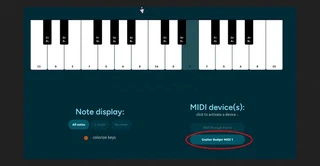
Go to any online midi player with USB capabilities, like Muted.io/piano. Make sure the Gopher Badge MIDI is enabled (this website works better in Chrome, other browsers might not detect the Gopher Badge as a MIDI device). Press the buttons and create your melody.
step9.go - Buttons, Accelerometer, USB HID interface
Run the code.
tinygo flash -target gopher-badge ./tutorial/basics/step9
Your Gopher Badge, connected to a computer, will act as a mouse now. Pressing the A button will perform a left click, B button a right click, and inclining the badge will move the mouse’s pointer thanks to the badge’s built-in accelerometer.
Good job in completing the basic tutorials. Now can check out the more advanced tutorials!
Snake Game
Play the famous Snake game on the Gopher badge.
My Name Is
This example display you name. Use this to make a simple name badge My Name is
Configure your name and use the awesome TinyGo-powered badge!
Note:
Find the different type of fonts you can use here
Next steps & ideas
For example:
- Add new effects and animations to the badge code, like Multipass from The fifth element movie.
- Use the 3-axis accelerometer to check if the wearer has tripped and fall down and send an SOS alarm (SOS in morse code is … — … , use the buzzer and RGB LEDs)
- Create your own Rubber Duck attack (examples/rubber-duck).
Not powering up with battery connected
If your battery is connected and switching your badge to ON doesn’t power it up, disconnect your battery, switch to ON and connect your battery again. If it doesn’t power up, then check the battery charge.